Below explained how to Add, Remove, Reorder or Rename Trade Grid pages.
Note: Only Custom pages can be added.
There are two ways to add Custom page.
-
Click on the Page menu of the Trade Grid window.

-
Select Add.. from submenu.
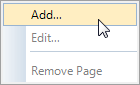
-
Add Page dialog will be shown.
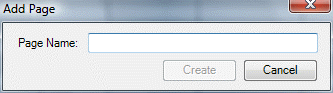
-
Enter desired Custom page name.
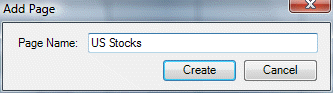
-
Click Create button.
-
Right-click anywhere on the tabs strip to show context menu.
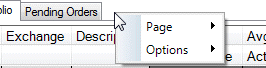
-
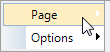
Select Page from context menu.
-
Select Add... from submenu.
-
Add Page dialog will be shown.
-
Enter desired Custom page name.
Note: Only Custom pages can be removed.
There are two ways to remove Custom page.
-
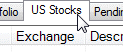
Right-click on the tab of a Custom page you want to remove.
-
Select Page from context menu.
-
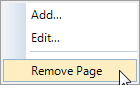
Select Remove Page in submenu.
-
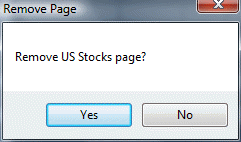
Click Yes in the Remove Page confirmation dialog.
-
Left-click on the tab of a Custom page you want to remove. Tab page will be shown.
-
Select Page from Trade Grid menu.
-
Select Remove Page in submenu.
-
Click Yes in the Remove Page confirmation dialog.
To reorder pages:
- Left-click and hold left mouse button on a tab to move.
- Move tab to desired position while holding mouse button.
- Release mouse button.
Note: Only Custom pages can be renamed.
There are two ways to rename Custom page.
-
Right-click on the tab of a Custom page you want to rename.
-
Select Page from context menu.
-
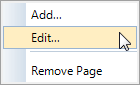
Select Edit... in submenu.
-
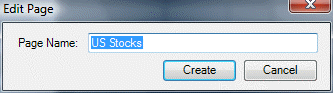
Edit Page dialog will be shown with the current Custom page name in the Page Name text box.
-
Enter desired page name in the Page Name text box.
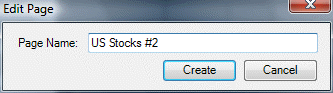
Click Create button.
-
Left-click on the tab of a Custom page you want to remove. Tab page will be shown.
-
Select Page from Trade Grid menu.
-
Select Edit... in submenu.
-
Edit Page dialog will be shown with the current Custom page name in the Page Name text box.
-
Enter desired page name in the Page Name text box.
Click Create button.